3) Tutorial - Understanding the database structure
Introduction
Datatoolbox does provide a csv-based database like interface that does use git to mangage and version control data sets (called “sources” with datatoolbox). Ideally, datatoolbox does manage all files and folders on the hard disk and manual changes are not required and even unsupported. Dataoolbox does monitor the internal folder and raises error when detecting manual changes. The underlying philophosy is to avoide manual changes that are not tracked by the git tracking and thus ensure reproducabilty of changes in the dataset. Overall, this should overall allow to reproduce analytical results based on given datasets and their fixed version.
The following figure shows the three layers within the data workflow starting from the raw data, to the aligned datatable struture, via the local database to the final shared database online.
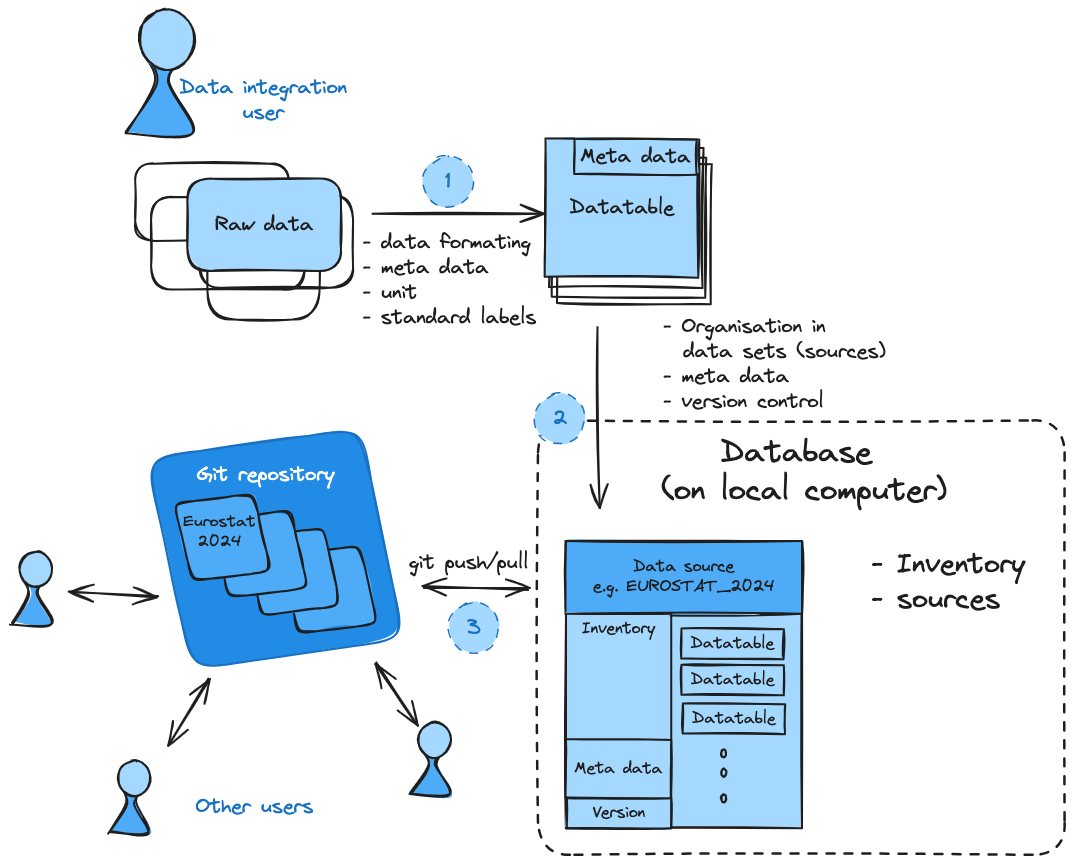
1) Data integration
As done in the first two tutorials, always the firsts step is the conversion of the data
into the required data fromat and aligning to the naming convention. The data is separated
into homogeneous datatables that only consist on variable and with that a set of meta information
for all data values for variable regional and temporal extend.
Please not, that the consisstency in meta data might require to split data in different datatables, e.g. if the same data is switching between historic values to for example a projection, which should be indicated in the meta data as different scenarios (historic vs projection), however, the user itself is adviced to maintain the useful level of consistency.
2) Organising data in individual sources (data sets)
Data sets (including all data from on souce and release) are organized as sources in datatoolbox. Each data set can contrain an arbitrary number of datatables reflecting different variables and scenario combinations. In the background, datatoolbox does create a git repository for each new source, that has its own meta data, inventory of datatables and is versioned using git.
import datatoolbox as  dt
dt.admin.switch_database_to_testing()
print(dt.core.DB._get_source_path('Numbers_2022'))
Each source directory does follow the same file structure including a csv for the meta data, a source_inventory csv file and a folder containing the individual datatable csv.
.
├── meta.csv
├── raw_data
├── source_inventory.csv
└── tables
    ├── Numbers-Fives__Historic__Numbers_2020.csv
    └── Numbers-Ones__Historic__Numbers_2020.csv````